 SpicaGF
Some days don’t finish
Tasks you planned don’t always get done that day. Carry forward moves an unfinished task to another day. It exists so you can rebuild the plan realistically — “I’ll take another run at this on that day” — instead of accumulating a pile of not-done and the pressure that comes with it.
Carrying a task forward
Tap the row of the task you want to move to open the edit screen, then tap → C/F near the bottom.
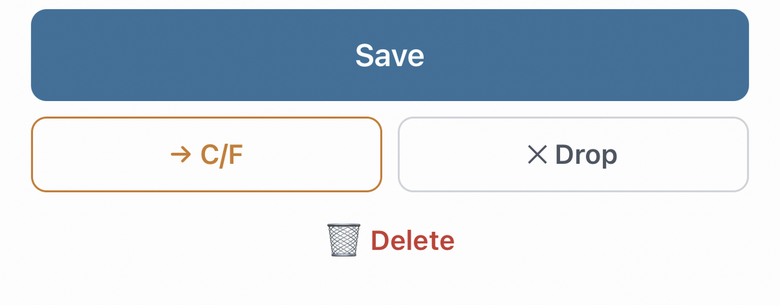
A sheet opens for the destination, with three options:
- Tomorrow — the next day
- Next Monday — sends it forward to the coming Monday
- Pick a date… — any day you like
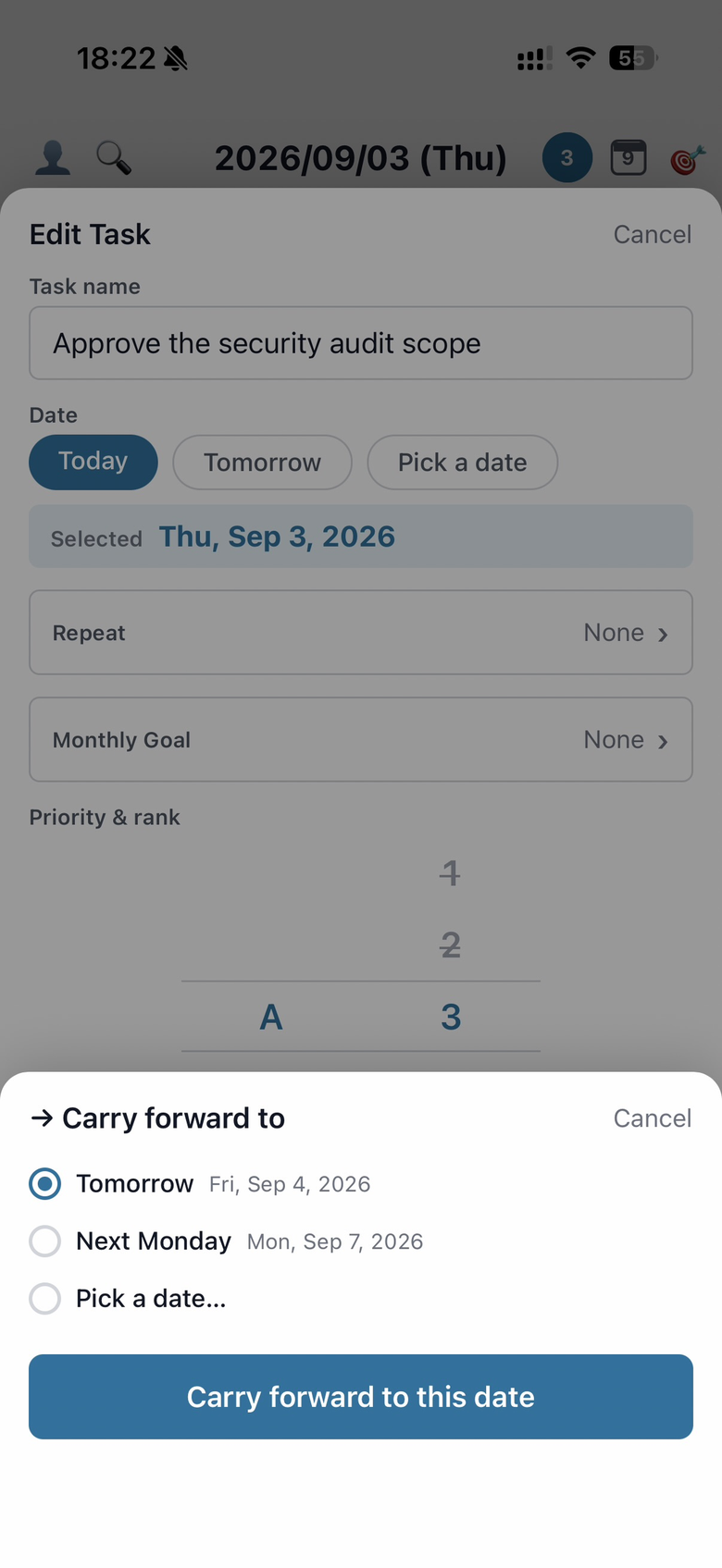
Choose one and tap Carry forward to this date to finish.
What a carried-forward task looks like
After carrying forward, the task on the original day goes light grey and shows its destination — → Sep 4, say. On the destination day, the same task appears fresh.
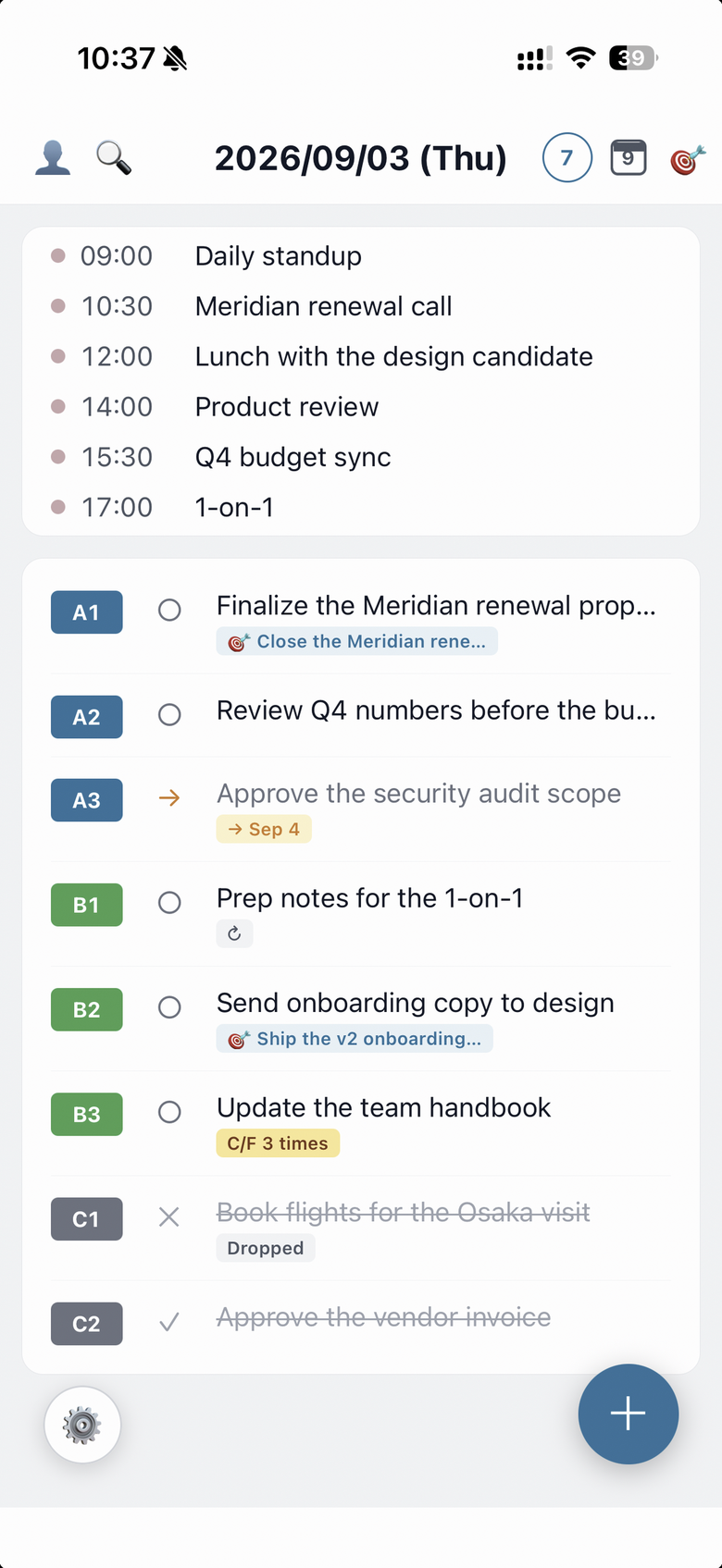
Tapping the grey task on the original day shows you where it went, and lets you jump to that day. To change the task’s contents, edit it on the destination day.
When you can’t carry forward
- Completed tasks can’t be carried forward — they’re already finished
- The destination has to be after the original day. You can’t send a task into the past or to the same day; the earliest is Tomorrow
With carry-forward, an unfinished day gets rebuilt without drama. Next: how to notice a task you’ve carried forward too many times, and how to undo a carry-forward when you decide to do it today after all.