 SpicaGF
Convenient enough to overuse
Carry-forward is convenient, which means the same task can end up moving again and again. That may be a sign worth reading: is this really something to do now? SpicaGF gives you a marker for it.
Noticing a task that keeps moving
When you keep carrying the same task forward, the count adds up. From three times on, the task gets a badge reading C/F 3 times.

When that badge shows up, it’s worth stopping to ask:
- Is the task too big? It might want breaking into smaller pieces
- Does it need doing at all right now? This is a good prompt to revisit the plan
Carry-forward is for rebuilding a plan, not for putting things off. The badge is there to remind you of the difference.
Undoing a carry-forward
When you change your mind and decide to do it today after all, a carry-forward can be undone.
Tap the carried-forward (grey) task and tap Undo carry-forward. After you confirm, the task goes back to not done on its original day.
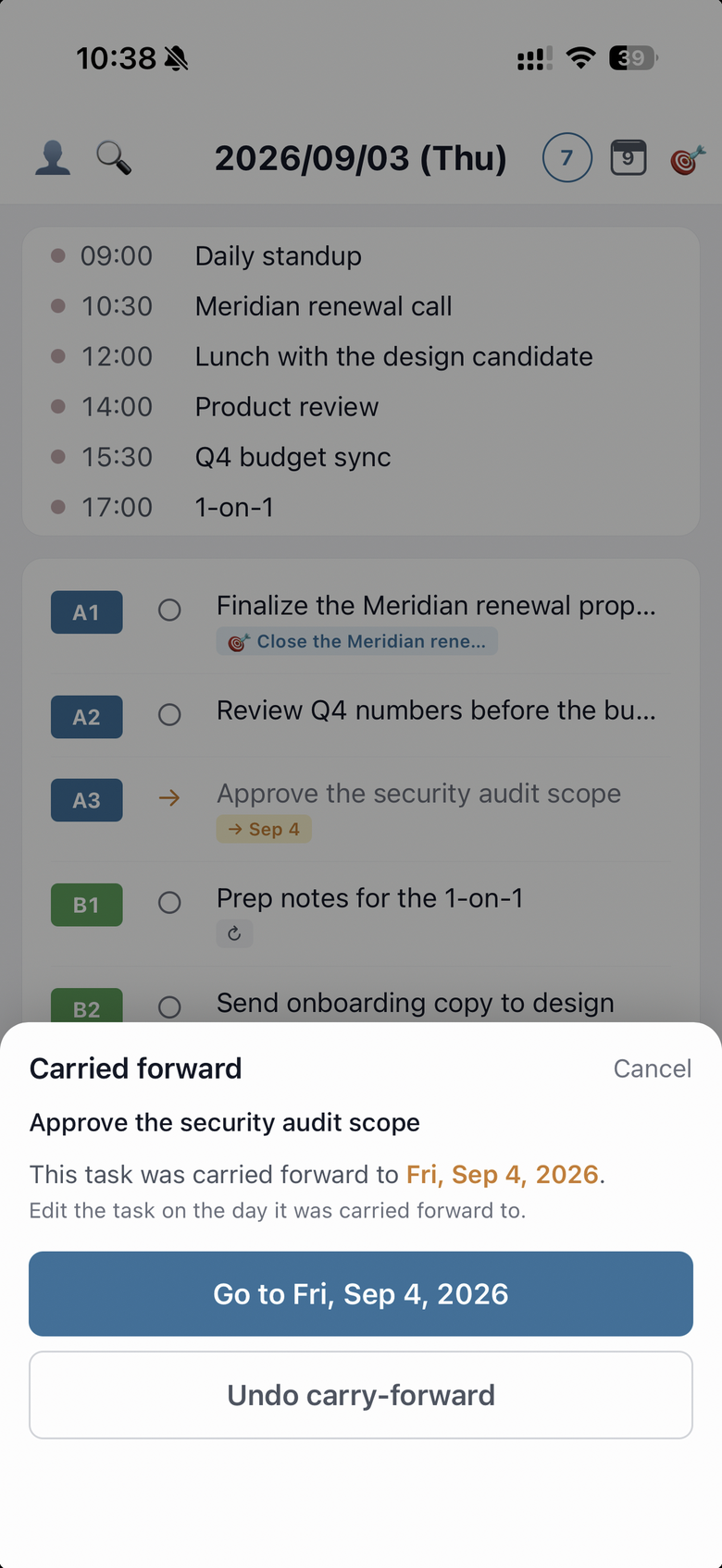
Undoing deletes the copy that was sitting on the destination day. So if you edited or completed it over there, those changes are lost — worth knowing before you confirm.
Note that only the most recent carry-forward can be undone. If the task was carried forward again to a further day, undo the newer move first.
That completes the Getting Started guides. Creating tasks, priorities, done and dropped, the month view, the link to Monthly Goals, repeats, and carry-forward — you have the whole of the basics. From here it’s yours to use at your own pace.