 SpicaGF
A task can end in three ways
There are three ways a task ends: done (you did it), dropped (you decided not to), and deleted (the record goes away too). SpicaGF keeps these three apart on purpose, so that a day still reads properly when you look back at it. This guide covers each one and when to reach for it.
Done: tap the start of the row
When you’ve finished a task, tap the ○ at the start of its row. It becomes ✓ and the text gets a line through it.
Tap again and it goes back to not done. A mistaken tap costs you nothing.

Dropped: keep the tasks you decided not to do
For a task you’ve decided against — not today, or the circumstances changed — use Drop. Tap the task row to open the edit screen and choose ✕ Drop.
A dropped task doesn’t disappear. It stays in that day’s record with an ✕, a line through the text, and a Dropped badge.

Why keep it instead of removing it? Because “I decided not to do this that day” is itself worth knowing when you look back. A dropped task can be brought back at any time with ↩ Mark as not done in the edit screen.
Delete: remove it completely
For a typo, or something that never should have been a task, Delete removes it entirely. Tap 🗑 Delete at the bottom of the edit screen and a confirmation appears, reading “This deletes it permanently. You can’t undo this.”
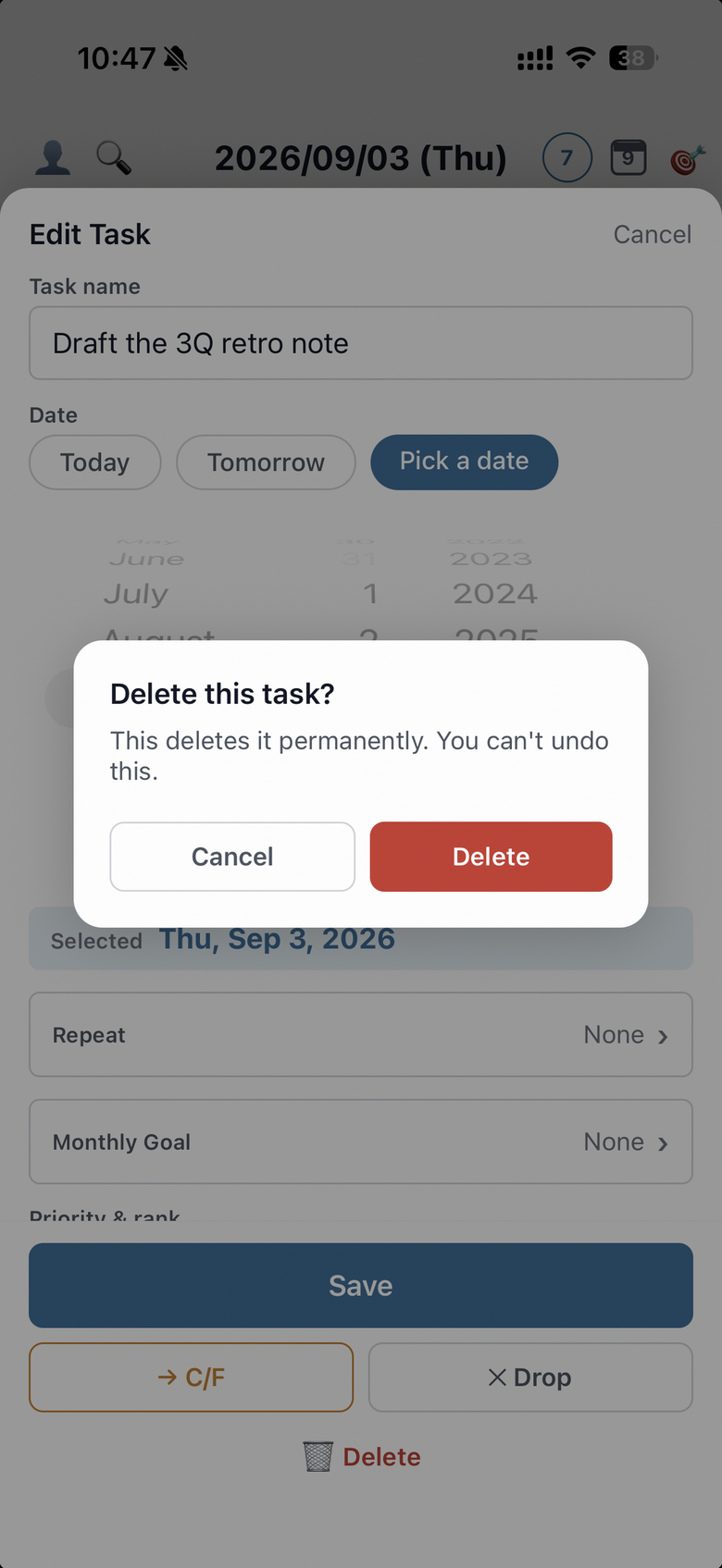
Deleting can’t be undone, and nothing stays behind in the record — which is why there’s a confirmation step.
Choosing between dropping and deleting
When you’re not sure, this is the split:
- Drop — you didn’t do it, and you want the fact that you didn’t to stay on the record → reversible
- Delete — there was never anything worth recording (a typo, something unnecessary) → not reversible
If looking back over your days matters to you, drop by default and save deleting for things that genuinely shouldn’t be there.
That covers the basic loop: create a task, prioritize it, finish it. Next we widen the view from a single day to the whole month.