 SpicaGF
From one day to the whole month
So far these guides have stayed in the Daily view: create a task, prioritize it, finish it. SpicaGF has a second vantage point — the month view. Where is this week jammed up? What does next week already hold? Widening to a month changes how you plan. This guide covers how to use it.
Opening the month view
Tap the 📅 (calendar) button at the top of the Daily view to switch to the month view.
To come back, tap the ☰ button at the top.

A month of tasks and events at a glance
The month view shows a calendar for the month, with each day’s cell holding a compact list of that day’s tasks and events.
- Tasks — a colour-coded priority badge such as
A1, plus the task name - Events — events from your calendar app appear as a coloured dot plus the event name
- When a day holds more than fits, the rest is summed up as
+3 - Completed tasks turn grey with a line through them
The selected day is outlined in blue, and the preview underneath shows what’s in it. Today’s date is drawn in a filled circle.
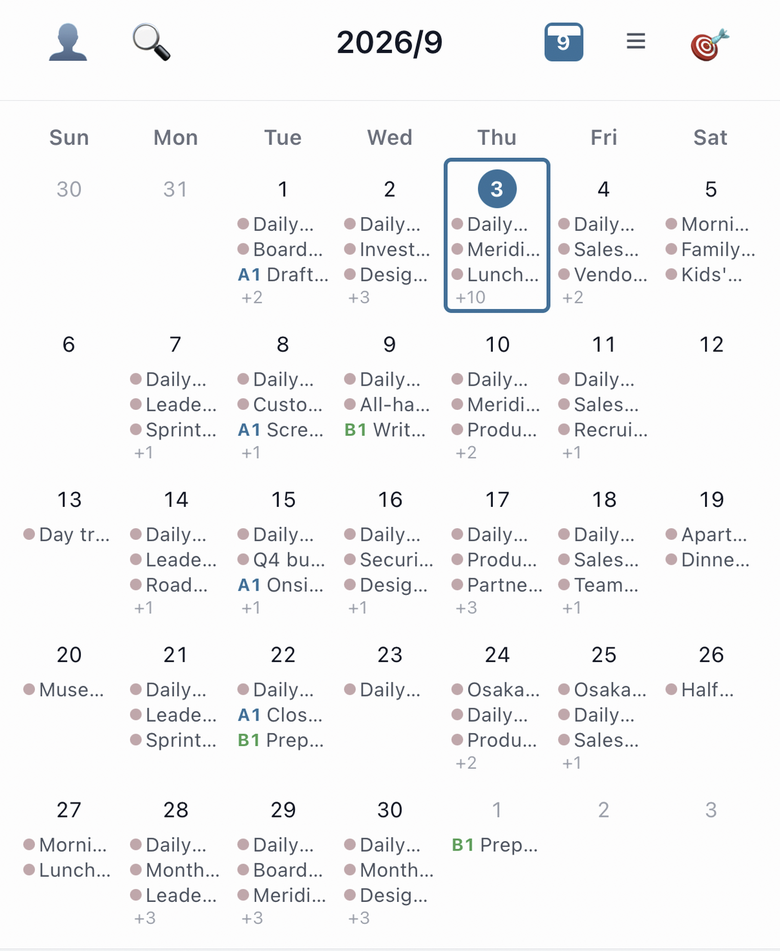
Cells are abridged on purpose. To see everything on a day, use the preview described below.
Moving between months
Swipe left or right on the calendar to move to the previous or next month.
When you’re looking at another month, the This month button in the top right brings you straight back. While you’re on the current month, that button appears filled in.
The order of the weekdays is a setting. Under Week starts on, pick Sunday or Monday to taste.
Looking inside a day
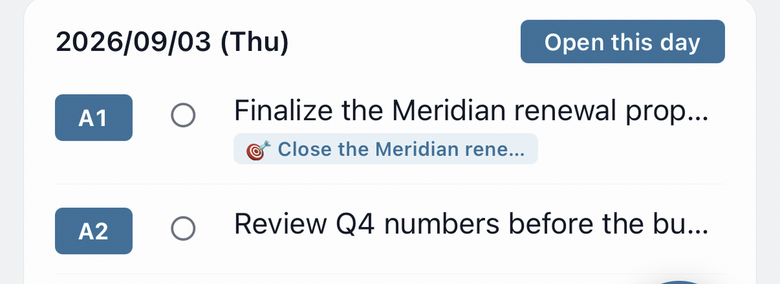
Tap a day’s cell and the preview at the bottom of the screen lists all of that day’s tasks — including whatever the cell had to abridge.
Tasks in the preview behave like they do in the Daily view: tap a row to edit it, or tap the ○ at the start to mark it done. You can work on a day’s contents without leaving the month view.
Tapping Open this day takes you to that day’s Daily view.
Adding tasks straight from the month view
There’s a + button in the bottom right of the month view too. Anything you add from here goes onto the day you currently have selected — so you can look at the calendar and drop work onto a specific day without going back to the Daily view.
Which screen opens first is up to you. If you tend to plan by the month, set the default view to Monthly in Settings.
A day’s tasks, and a month’s outlook — SpicaGF is meant to be used by moving between those two. Next: taking the goal you set at the start of the month and working it down into daily tasks. It’s the use of the app we care about most.