 SpicaGF
Stop rebuilding the same task
The morning stretch, the Monday review, the monthly look at the household budget — anything you do on a cycle can be set to repeat once, and then you never rebuild it by hand again. This guide covers how to set that up.
Setting a repeat
Start by creating the task you want to repeat (see Getting Started #1 if you need the basics). Tap that task’s row to open the edit screen, then tap the Repeat row. When the repeat sheet opens, choose a frequency.
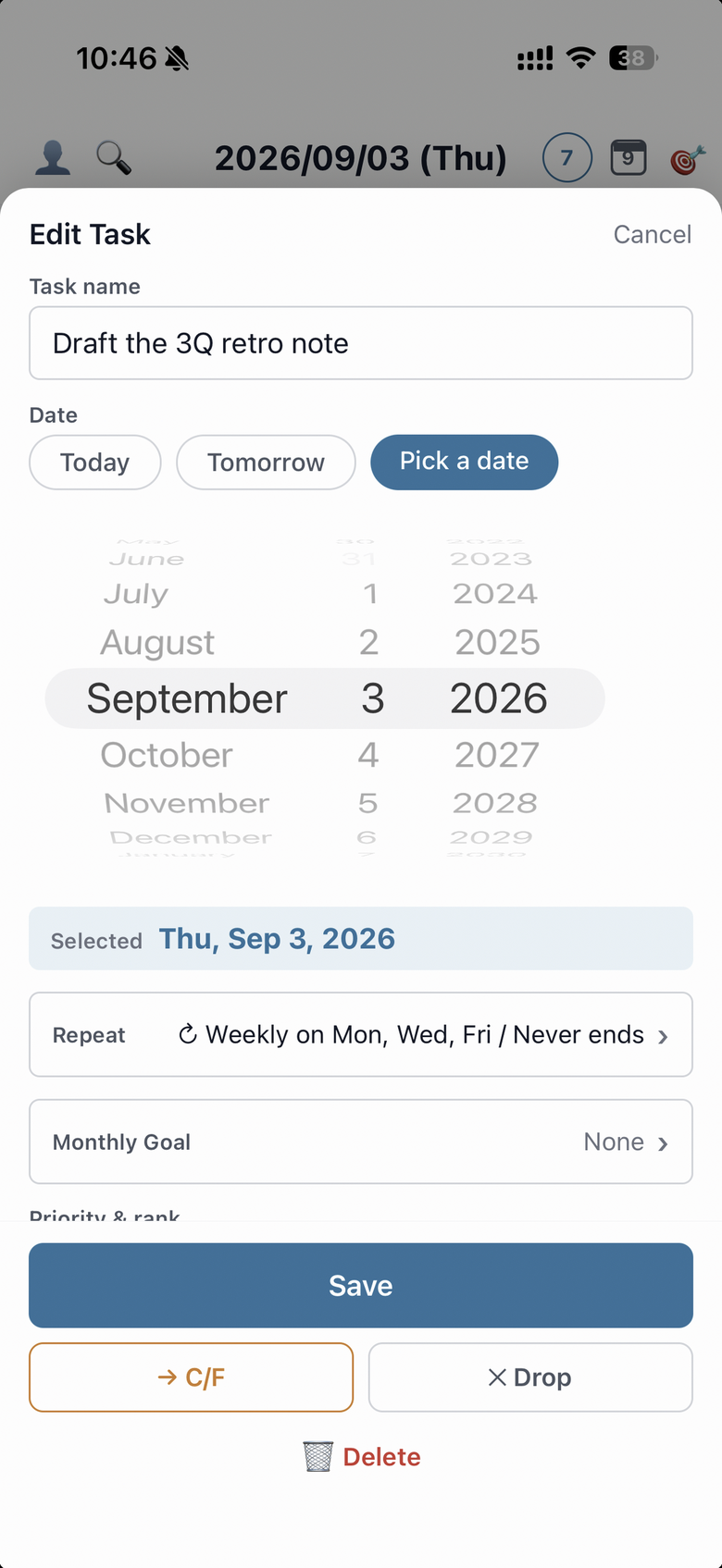
Choosing a frequency
Frequency is one of None, Daily, Weekly or Monthly.
- Daily — every day
- Weekly — pick the days of the week (you can pick several — Mon/Wed/Fri, say)
- Monthly — pick a day of the month (months without that day — the 31st, for instance — are skipped automatically)
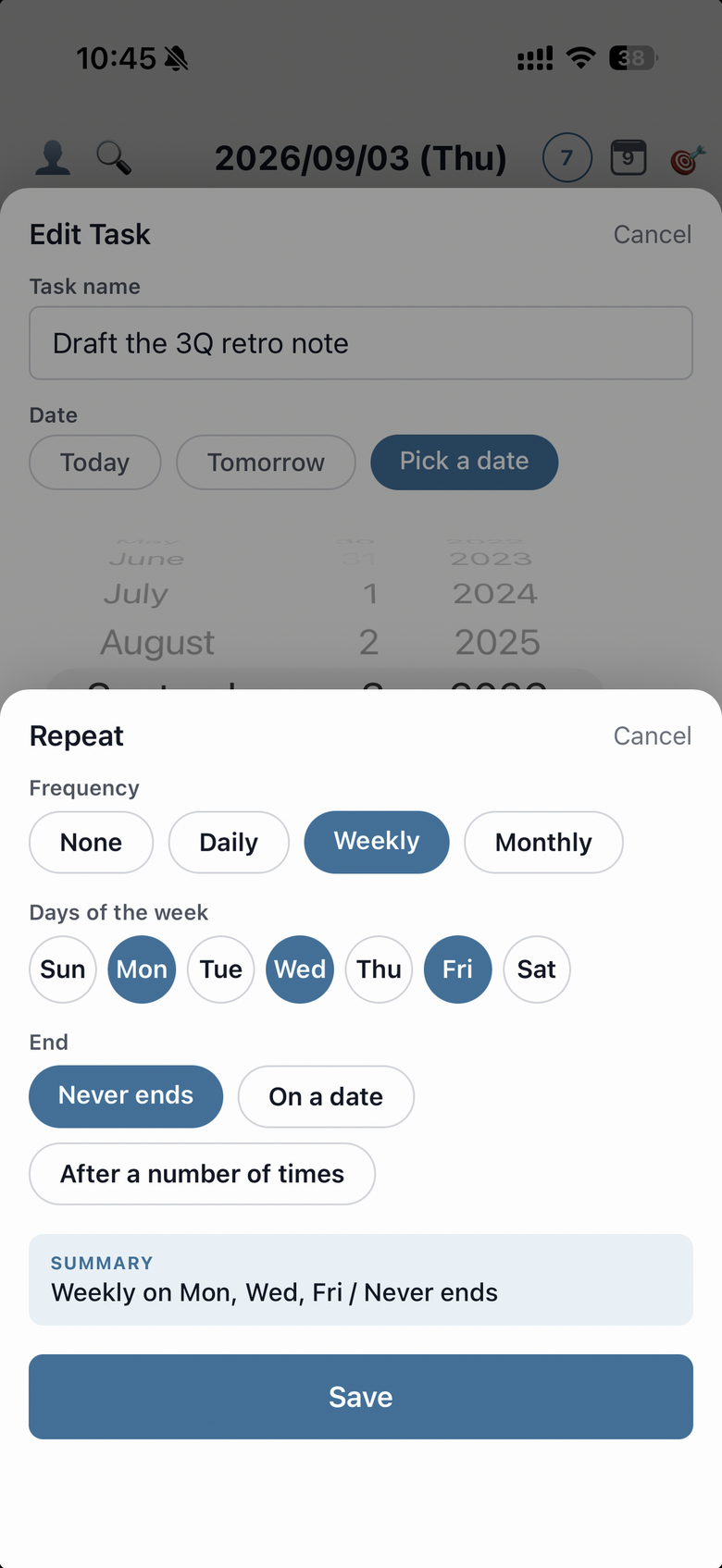
Deciding when it ends
Choose how long the repeat should run.
- Never ends — keeps going
- On a date — up to a date you pick
- After a number of times — a set number of remaining occurrences
As you set it, a Summary appears at the bottom of the sheet describing the current setting in a sentence, so you can check it reads the way you meant before saving. Tap Save to finish.
What repeating tasks look like
Once a repeat is set, the task appears on its days by itself — no copying required. Tasks born from a repeat carry a ↻ mark on the row, so they’re easy to tell apart.
Each day’s copy stands on its own, so marking one day’s task done doesn’t touch any other day’s. What you decided to do every day, you deal with one day at a time.
Changing or stopping it later
To change a repeat, open the Repeat row again from the repeating task’s edit screen. Setting the frequency to None and saving removes the repeat.
When you edit or delete a repeating task, you choose between This task only and This and all future tasks — rename just today’s copy, or change it from next week onward.
With repeats, habits become structural. Even so, some days don’t go to plan. Next: carrying forward the tasks a day didn’t finish.